Your account, plans & support
Google/GitHub sign-in, linked accounts, passwords, support access, plans and billing, getting help.
Signing in
The public home page is at the root address (/). The app itself is at /dashboard: after you sign in you land there, and the
home page's top-right button changes from Sign in to Open dashboard while you're signed in. In the app, Home page in the
sidebar takes you back to the home page. (If your operator turned the public site off, / is just the sign-in page.)
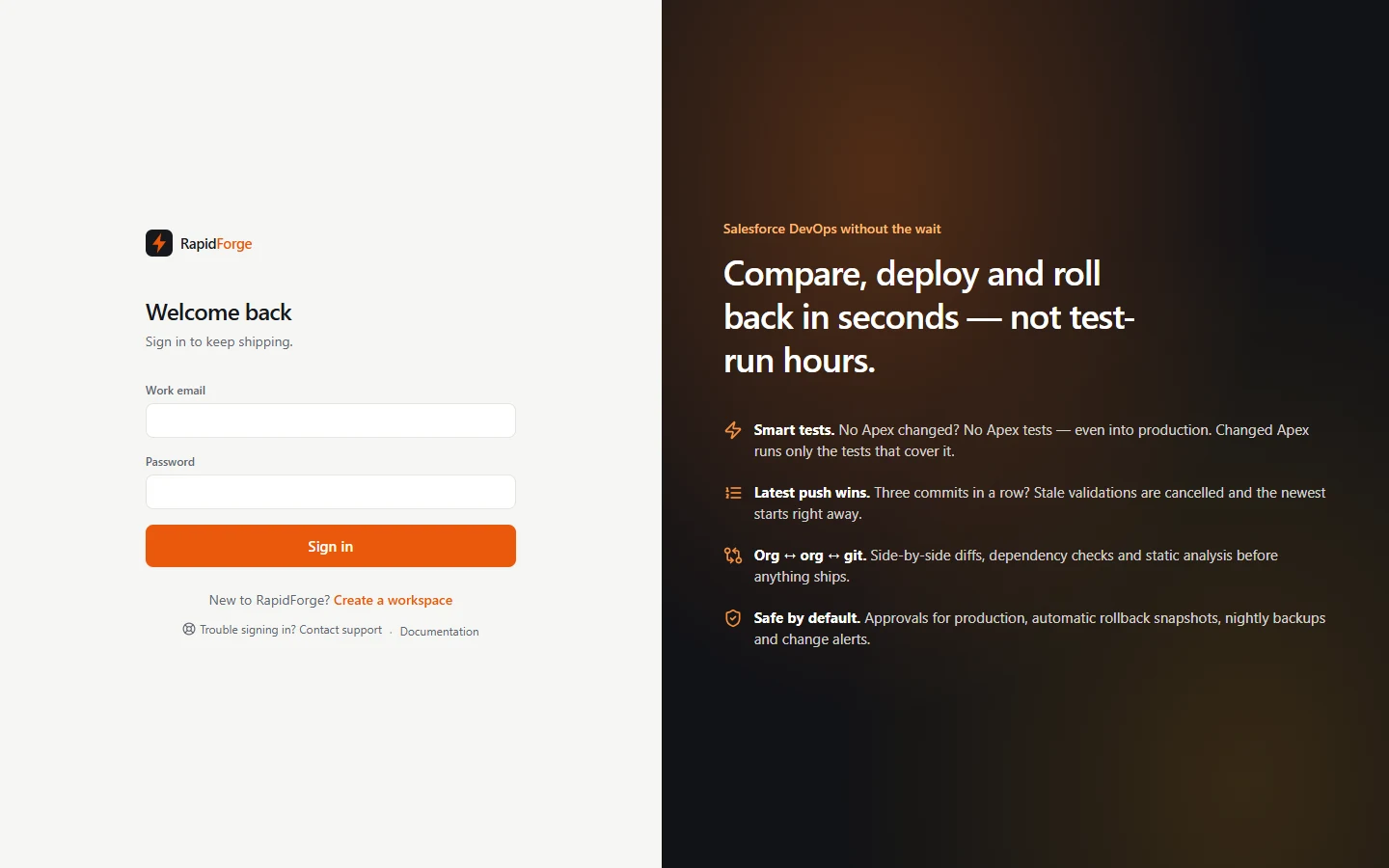
You can sign in with:
- Email & password, and/or
- Continue with Google / Continue with GitHub (when your server has them enabled).
Accounts merge by email. If you sign in with Google or GitHub and that provider confirms a verified email address that matches an existing Diffbridge account, you're signed in to that account and the provider is linked to it. A pending team invite for that email is accepted the same way. Unverified provider emails are never merged.
Forgot your password?
On the sign-in page click Forgot password?, enter your email, and Diffbridge emails you a link. Open it, choose a new password, and you're signed in. The link works once and for one hour; asking again replaces it, and an address with no account looks exactly the same from outside, so nobody can use the page to find out who has one. A new password signs you out of every other browser. Accounts that must sign in through SSO, and invitations you haven't accepted yet, don't get a reset email (use your company's sign-in, or the invite link).
If the email never arrives, check spam, then ask an admin to check the server's email settings (EMAIL_PROVIDER, SMTP_*
in operations).
My account
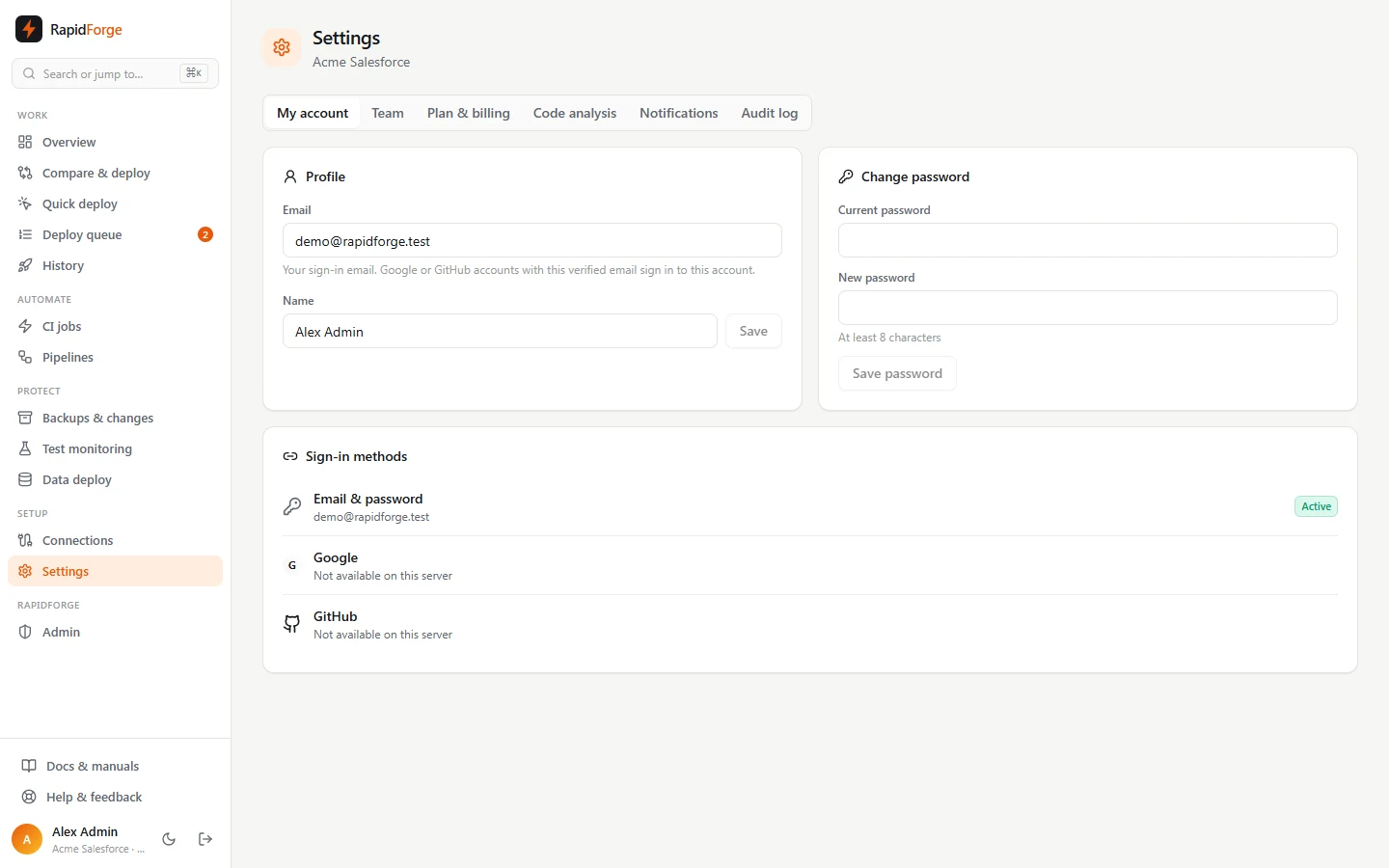
Settings → My account:
- Profile: change your display name. Your email is your sign-in identity.
- Password: change it (you'll need your current password). If you signed up with Google or GitHub you can set a first password to add email sign-in as a backup.
- Sign-in methods: see which methods are active, Link Google or GitHub (even with a different email address), or Unlink one. You can't remove your last way to sign in: set a password first.
Support access (grant login access)
When you contact support about a problem, the fastest fix is often for us to see exactly what you see. Settings → My account → Support access lets Diffbridge support sign in as you, for a limited time:
- Choose the Access:
- View only: support can open every page, comparison and deployment, but every change is blocked.
- Full access: support can also compare, validate and deploy as you, for example to reproduce a failing deployment.
- Choose For: 1 hour, 1 day, 3 days, 1 week or 30 days.
- Optionally say what we should look at, then click Grant access.
While access is granted the card shows the level, when it ends and when support last signed in. Change extends it or switches the level; Revoke access ends it, along with any support session in progress, immediately.
Safeguards, whatever level you choose:
- You're emailed every time support signs in.
- Everything support does is recorded in your audit log as Diffbridge support, including when they signed in and out. Recent activity on the card shows the same history.
- Support can never change your password, sign-in methods, billing, or the support access itself.
- A support session lasts at most one hour, and never beyond the end of your grant.
Plans & billing
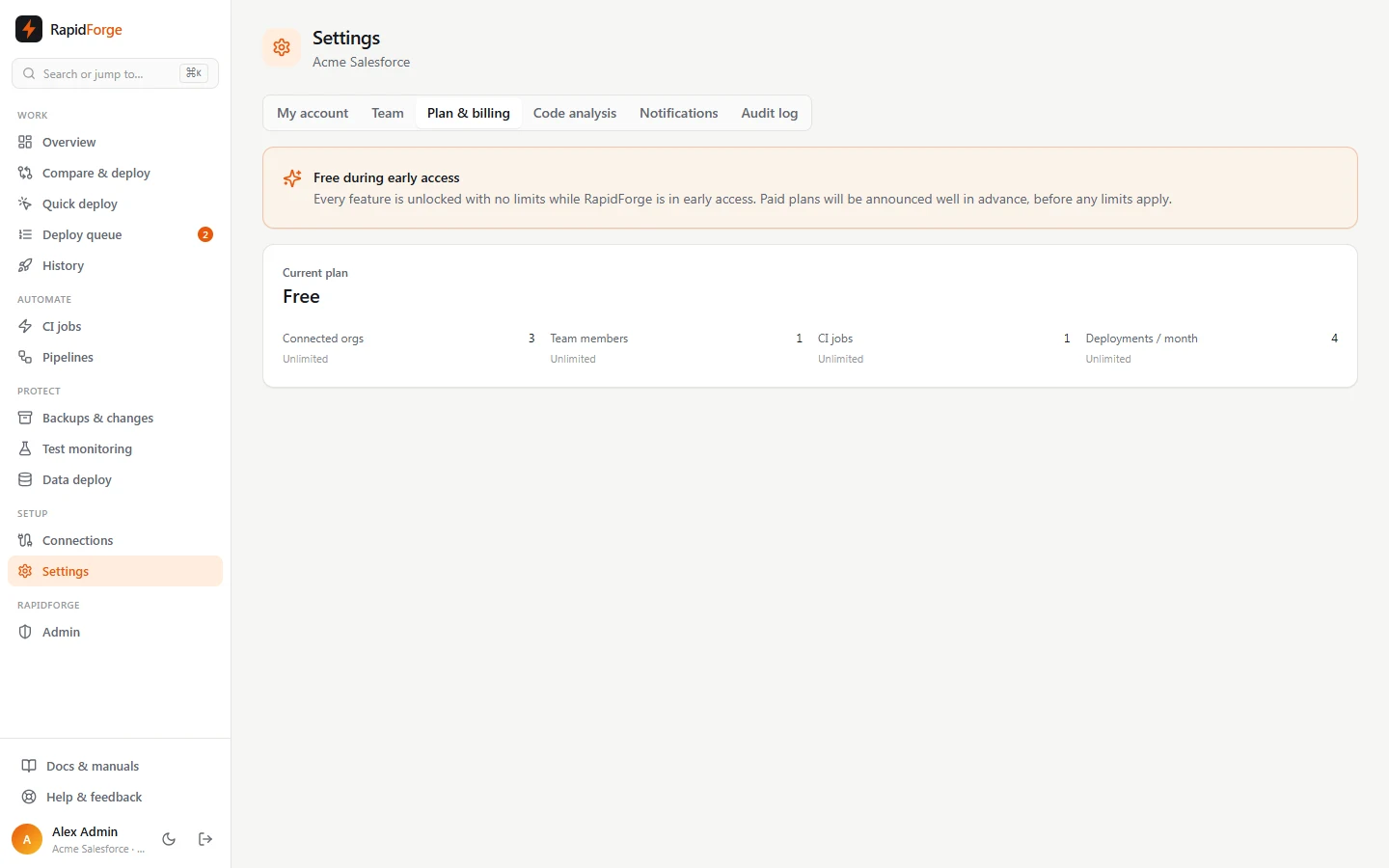
Settings → Plan & billing shows your plan and your usage against its limits:
- connected orgs, team members, CI jobs, deployments this month and backup storage.
Free during early access: while Diffbridge is in early access every feature is unlocked with no limits. Paid plans will be announced well before any limits apply.
When paid plans are enabled:
- Owners see the available plans and can Upgrade through Stripe Checkout, and Manage billing (cards, invoices, cancellation) in Stripe's customer portal.
- Going over a limit (for example adding a fourth org on a plan with three) shows a message explaining the limit and how to upgrade.
- Free trial: every new workspace gets a 30-day trial with every feature unlocked and no limits, with no card needed. A banner and Plan & billing show the days left.
- After the trial, unpaid: the workspace becomes read-only. You can still sign in, view everything, export your data, reach billing and contact support, but deployments, backups, CI runs and other changes are paused (including automatic ones, such as webhooks and schedules) until an owner picks a plan. Nothing is deleted when the trial ends.
- If a paid subscription is cancelled or goes unpaid, the same read-only state applies.
- Backup storage: each plan includes some storage for backups, snapshots and archives. At the limit, new backups pause (nothing is deleted) and owners are emailed until there is room again.
- Need more room? On a paid plan, owners can add extra backup storage or extra deployments under Need more room? on Plan & billing. They are billed per unit each month, added to your subscription and prorated, and you can remove them any time.
If your workspace is suspended, a red banner explains it. You can still sign in, view everything and contact support, but changes are paused.
Help & feedback
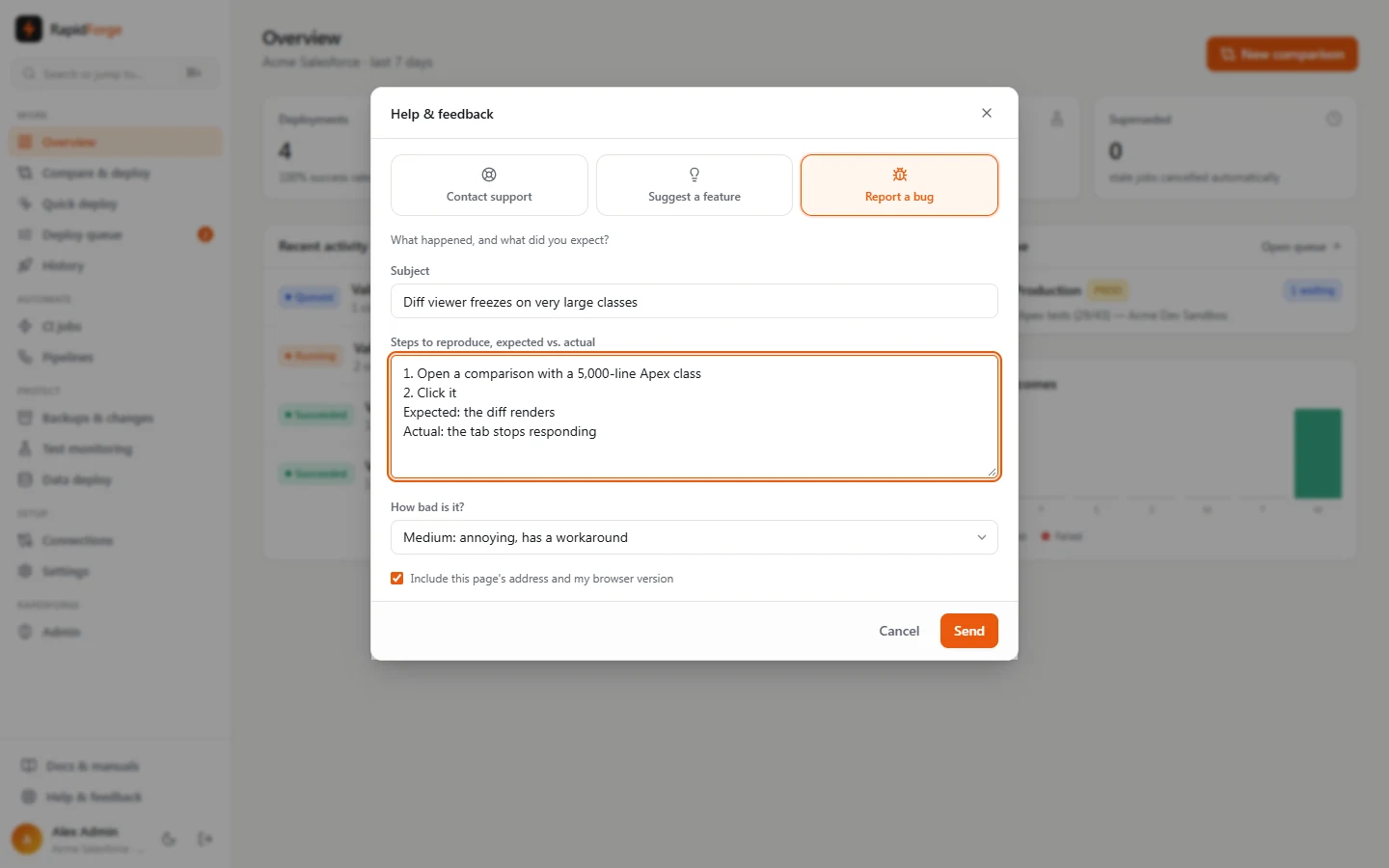
Click Help & feedback at the bottom of the sidebar (or ⌘K → Help):
- Contact support: questions or problems. We reply by email.
- Suggest a feature: ideas are read by the team.
- Report a bug: describe what happened and what you expected, and choose a severity (low, medium, high, critical). Leave Include this page's address and my browser version ticked to help us reproduce it.
Can't sign in? Use Trouble signing in? Contact support on the sign-in page and enter the email we should reply to. Every manual page also has a Tell us link for documentation feedback.