Compare & deploy
Find differences, review diffs, validate, deploy, quick deploy a validation, and roll back.
Every deployment starts by working out exactly what differs between a source and a target. You review the differences, pick what to ship, and Diffbridge validates or deploys it. (If you already know exactly what you want to ship, Quick deploy skips the review step.)
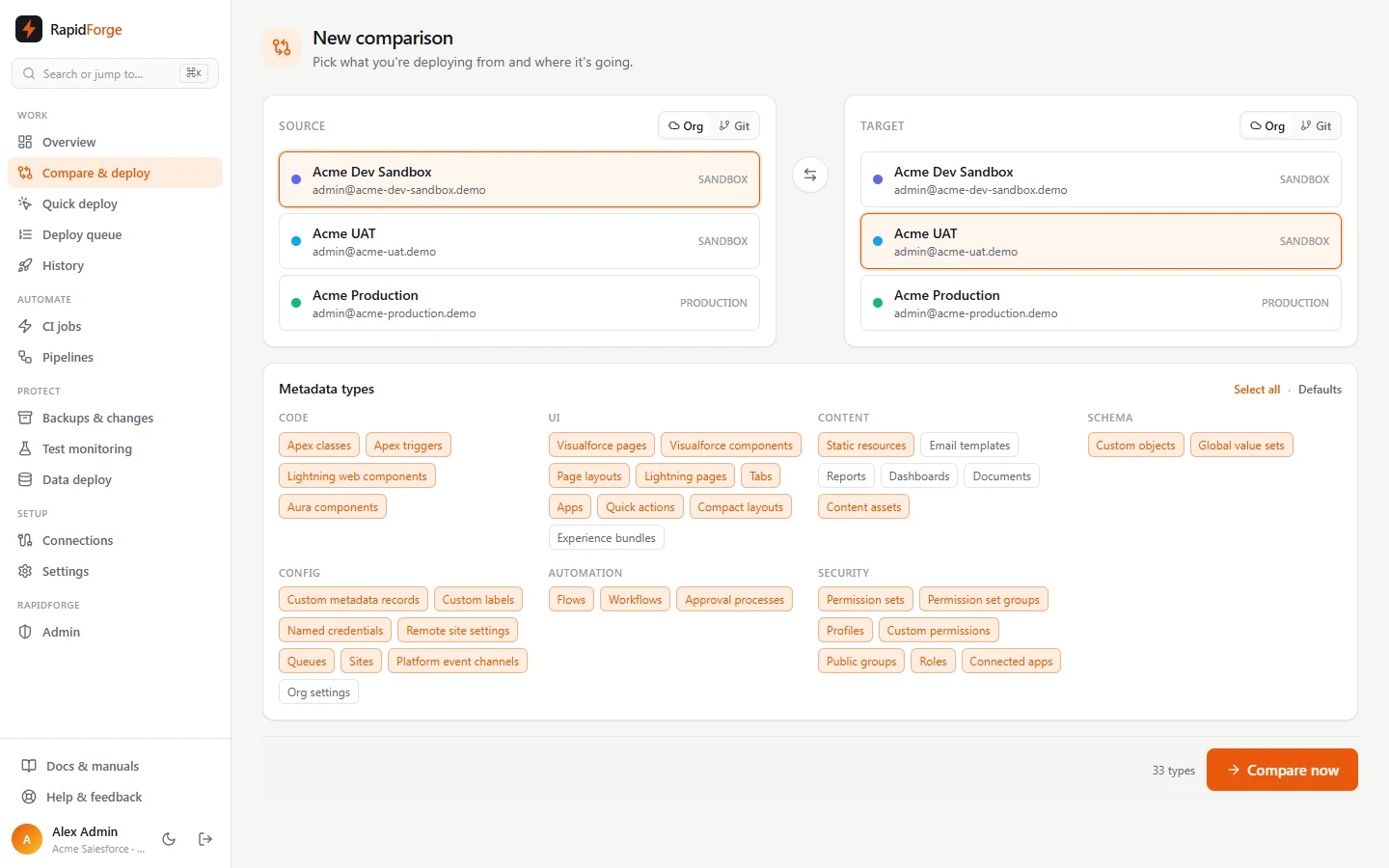
Start a comparison
Compare & deploy → New comparison
- Source: an org, a git branch (switch the picker to Git), or a backup snapshot (from Backups → Restore from this snapshot).
- Target: an org (to deploy) or a git branch (to commit). Use the ⇄ button to swap them.
- Metadata types: grouped by category. Defaults covers code, objects, automation, UI, security (including profiles) and config. Reports, dashboards, documents, email templates, Experience bundles and org settings are opt-in.
Click Compare now. Both sides are retrieved in parallel; large orgs can take a minute or two.
Read the results
Each component has a status:
| Status | Meaning | Deploying it… |
|---|---|---|
| New | Only in the source | creates it in the target |
| Changed | In both, different | overwrites the target's version |
| Deleted | Only in the target | deletes it from the target (destructive change) |
| Identical | Same on both sides | does nothing |
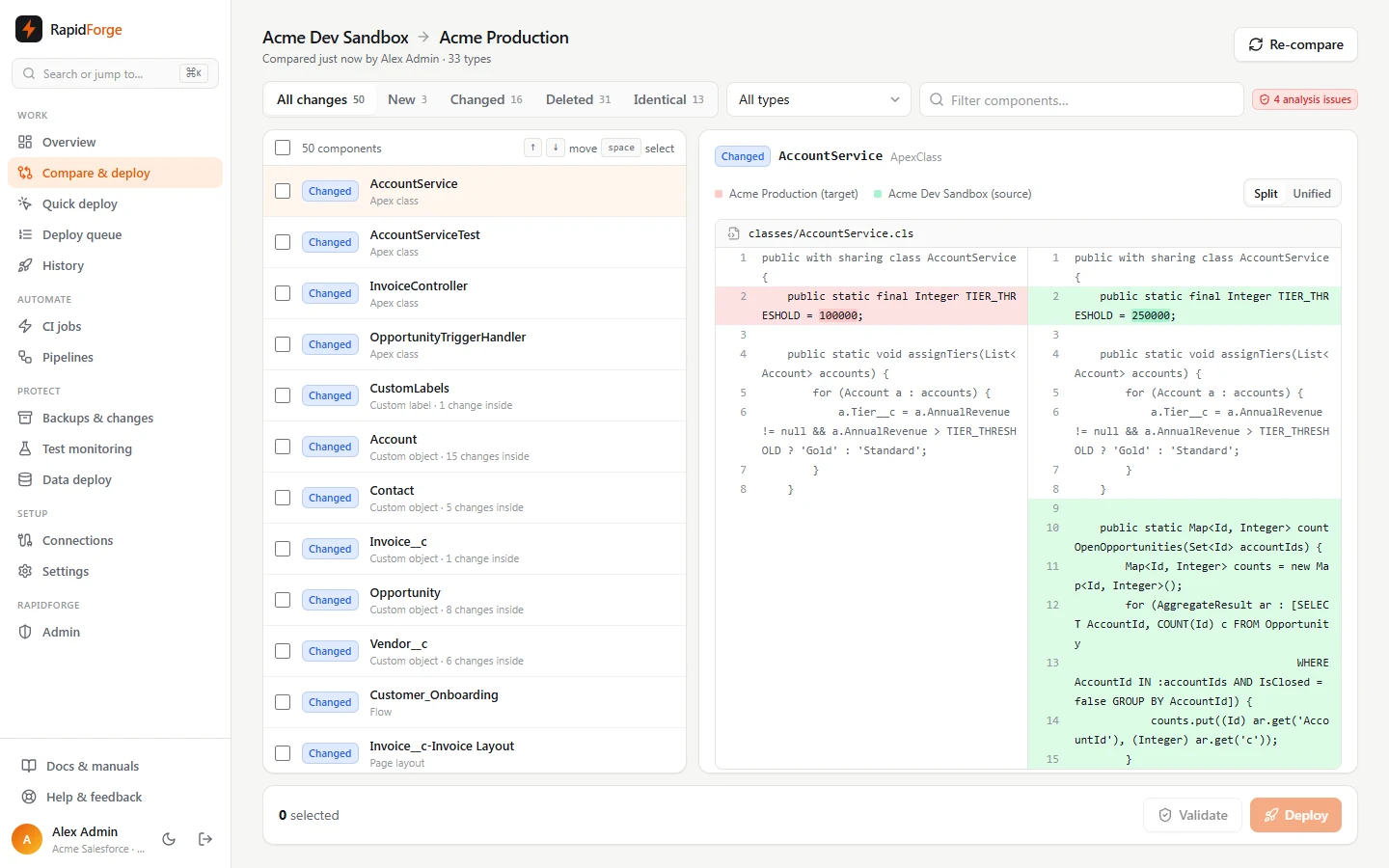
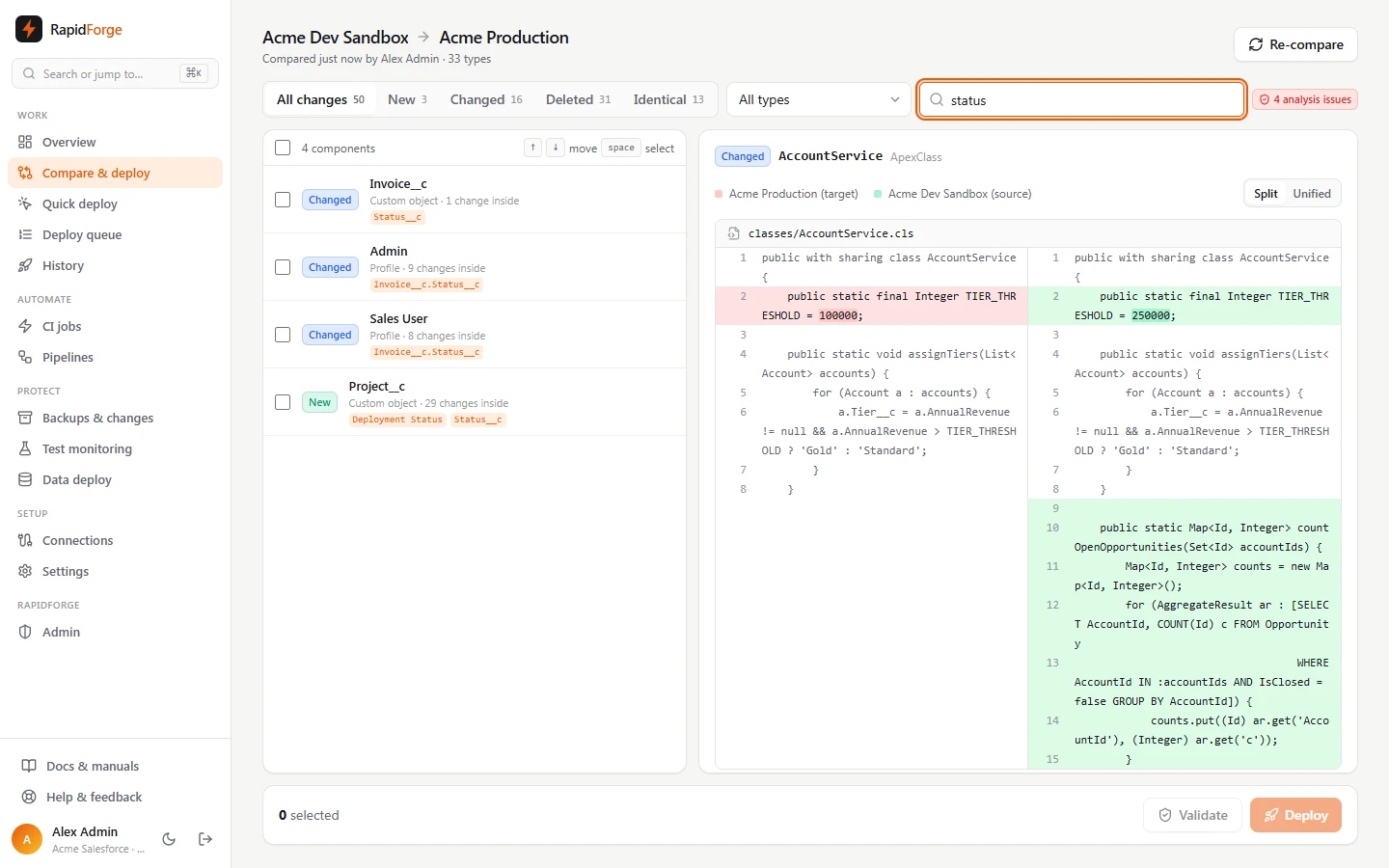
Use the tabs (All changes, New, Changed, Deleted, Identical), the type filter and the search box to narrow the list. Search also looks inside objects and profiles: searching Region finds Account because its Region__c field changed, and shows the matching field as a chip. Rows show how many changes are inside them, for example Custom object · 9 changes inside.
Click a row to see its diff: Split (target left, source right) or Unified, with word-level highlights and collapsed unchanged lines. For objects, profiles, permission sets and custom labels the panel opens on Pick changes so you can deploy individual fields or permissions; see Cherry-picking changes.
Rows with a red or amber icon have code analysis findings (for example SOQL inside a loop, or a hard-coded record ID). The issue list is shown above the diff.
Keyboard: ↑/↓ (or j/k) move through the list, space selects the focused row.
Validate or deploy
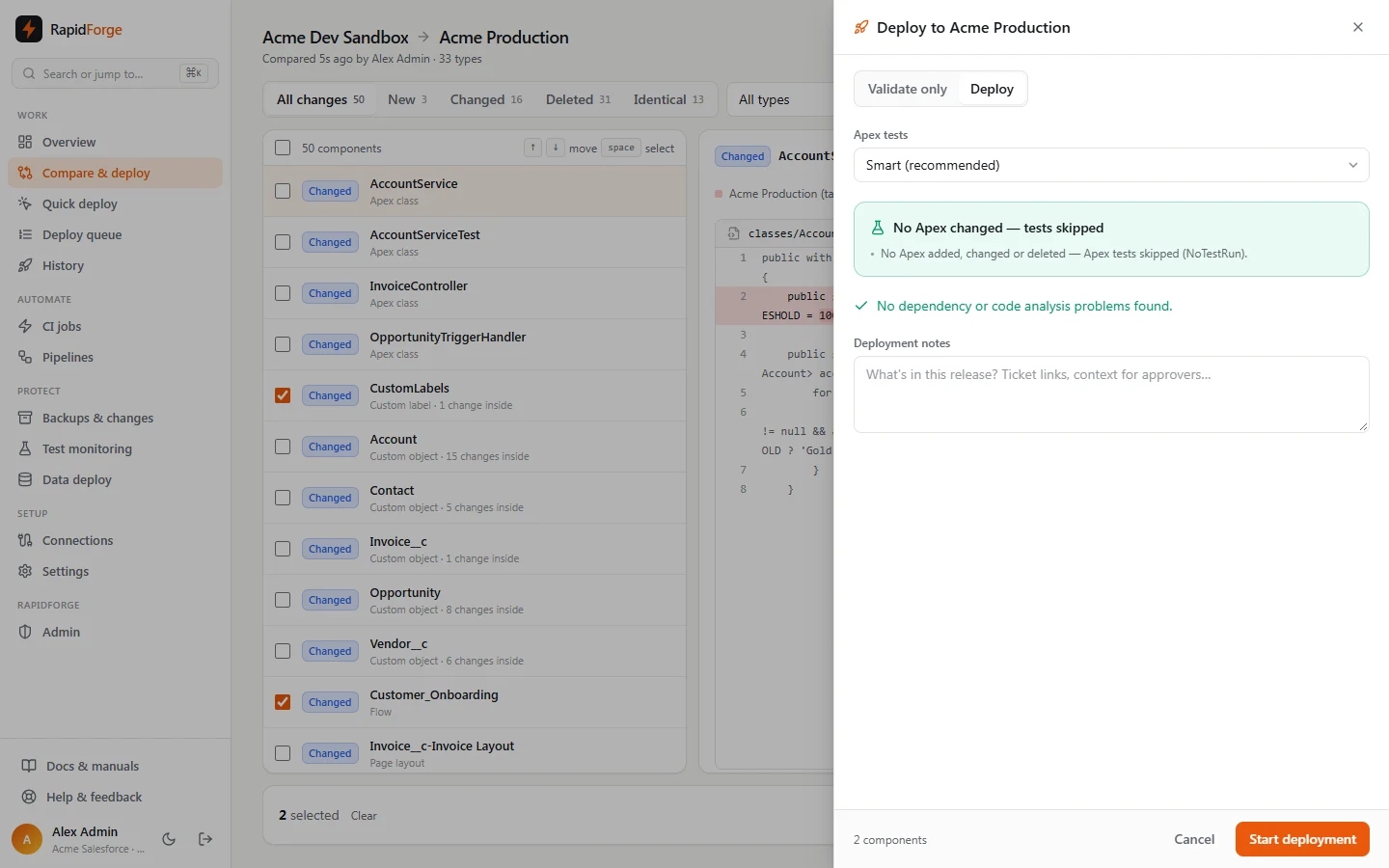
Tick components and click Validate or Deploy. The panel shows, before anything starts:
- Apex tests: the plan (Smart by default) with the exact test classes and the reasons. See Apex tests & Smart tests.
- Cherry-picked changes: for objects/profiles where you picked a subset.
- Queue: how many jobs are ahead, and whether this job will supersede older ones.
- Problems likely to fail the deployment: missing dependencies (with an Add button that selects the missing component) and deletions of Apex that other code still uses.
- Code analysis: warnings and info from the analysis rules.
- Deployment notes: shown to approvers and in history.
If the target requires approval and you're a deployer, the button reads Request approval.
The panel also shows any Smart fixes (dependencies, fields and permissions added, deleted fields cleaned out of layouts and reports; see Smart fixes & dependencies) and Review package, a list of every component that will be deployed or deleted.
Validate vs. deploy
- Validate is a check-only deployment: Salesforce compiles everything and runs the chosen tests, but nothing is saved.
- Deploy saves the changes. Just before it starts, Diffbridge snapshots the current target versions of everything in the package so you can roll back.
Watch a deployment
The deployment page updates live: component and test progress bars, an Activity log, the Components list (including Apex that was dropped because it was identical) and an Errors tab with component errors, test failures and coverage warnings.
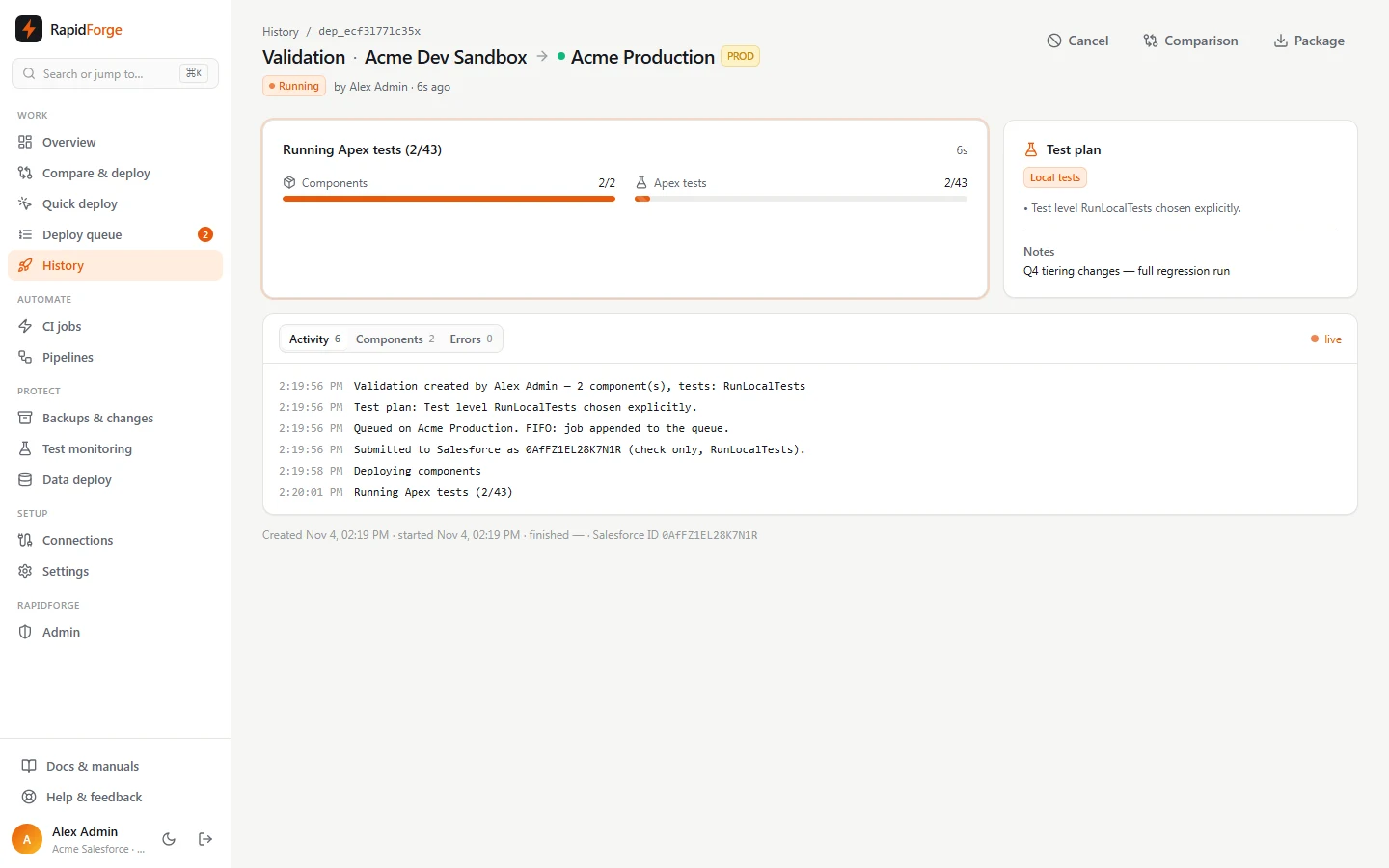
Actions on the page:
| Button | When | What it does |
|---|---|---|
| Cancel | queued, running, awaiting approval | Removes it from the queue, or asks Salesforce to cancel the running deployment |
| Run now | queued | Cancels whatever is running on that org and starts this one next |
| Approve / Reject | awaiting approval (owners/admins) | Releases it into the queue, or rejects it |
| Quick deploy | successful validation that ran tests | Deploys the validated package without re-running tests (valid for 10 days) |
| Deploy this package | successful validation that didn't run tests | Deploys the same package again for real |
| Roll back | successful deployment | Restores the pre-deployment snapshot and removes components the deployment created |
| Package | always | Downloads the exact zip that was deployed |
Commit to git instead
If the target of a comparison is a git branch, the action bar shows Commit to branch. Choose a branch name (created from the target branch if it doesn't exist) and a commit message. Diffbridge commits and pushes; open a pull request from that branch in your git provider.
Re-compare
Re-compare runs the same comparison again (same source, target and types), which is useful after a deployment or after someone changes an org.