Cherry-picking changes
Deploy individual fields, permissions, labels and layout sections out of objects, profiles, permission sets and layouts.
Some metadata is a big bag of independent settings in one file. A profile holds hundreds of permissions; an object holds dozens of fields, validation rules and list views. Deploying the whole file ships every difference, including ones you didn't mean to ship (like a permission someone switched on in a sandbox). Diffbridge lets you deploy individual items instead.
Supported types:
| Type | Items you can pick |
|---|---|
| Custom Object (standard objects too) | fields, validation rules, list views, record types, buttons & links, compact layouts, field sets, business processes, sharing reasons, and object settings like the label |
| Profile | field permissions, object permissions, Apex class / Visualforce page access, layout assignments, record type and tab visibility, app visibility, system permissions, custom permissions, and more |
| Permission Set | the same permission categories as profiles |
| Custom Labels | individual labels |
How to pick
In a comparison, click a changed or new object, profile, permission set or label file.
The detail panel opens on Pick changes (switch to File diff for the raw XML).
Items are grouped by category with their status and what changes, for example
editable false → trueorvisibility DefaultOff → DefaultOn. Nested settings changed means something inside changed (like picklist values); see File diff for details.Tick the items you want. Ticking an item selects the component automatically. The header shows Deploying 2 of 7 changes, and the list shows a
2/7badge on the row.- All / None select every deployable change, or nothing.
- Group checkboxes select a whole category.
- Show unchanged reveals identical items for context.
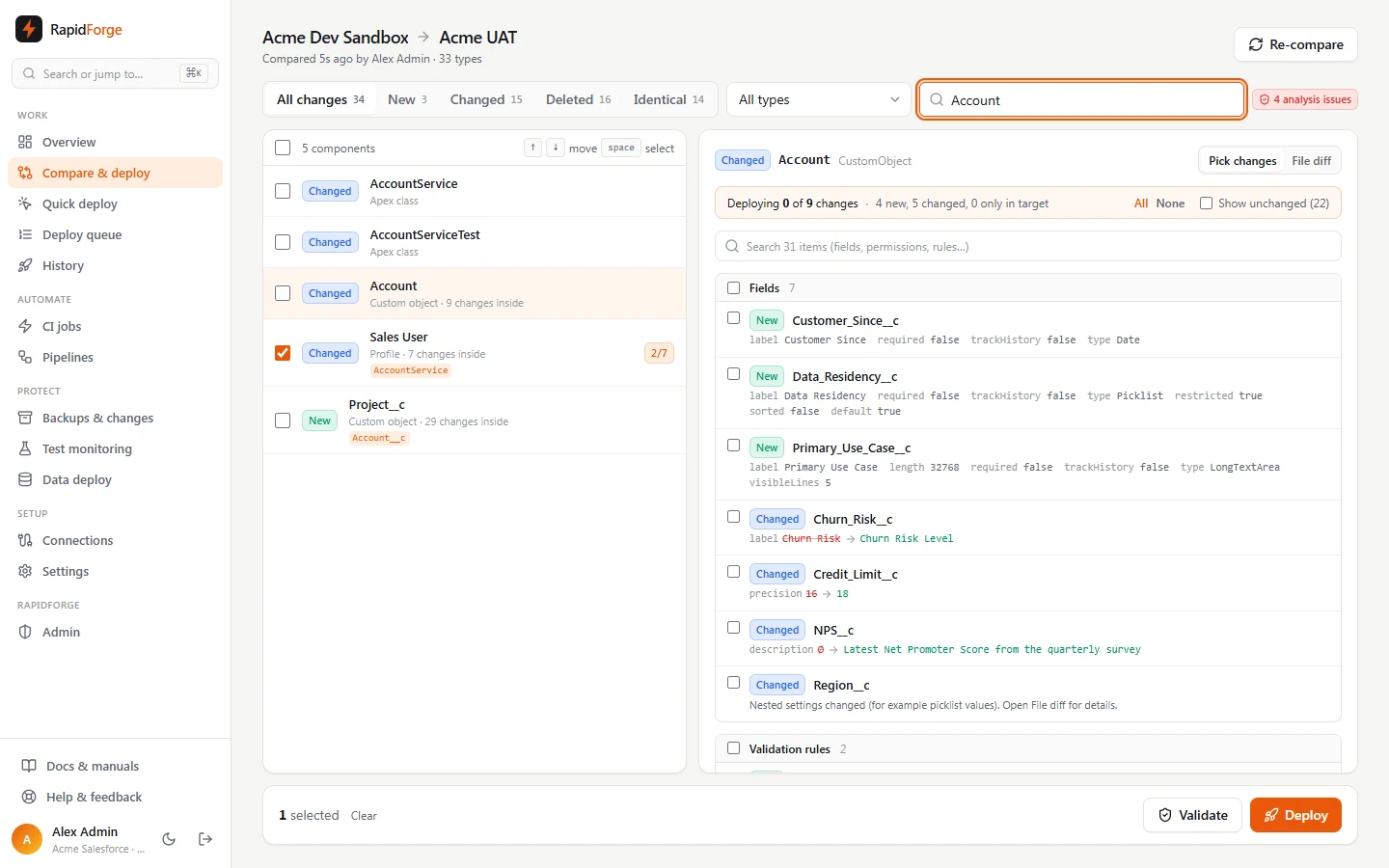
- With more than 8 items a search box appears. Type a field, permission or rule name.
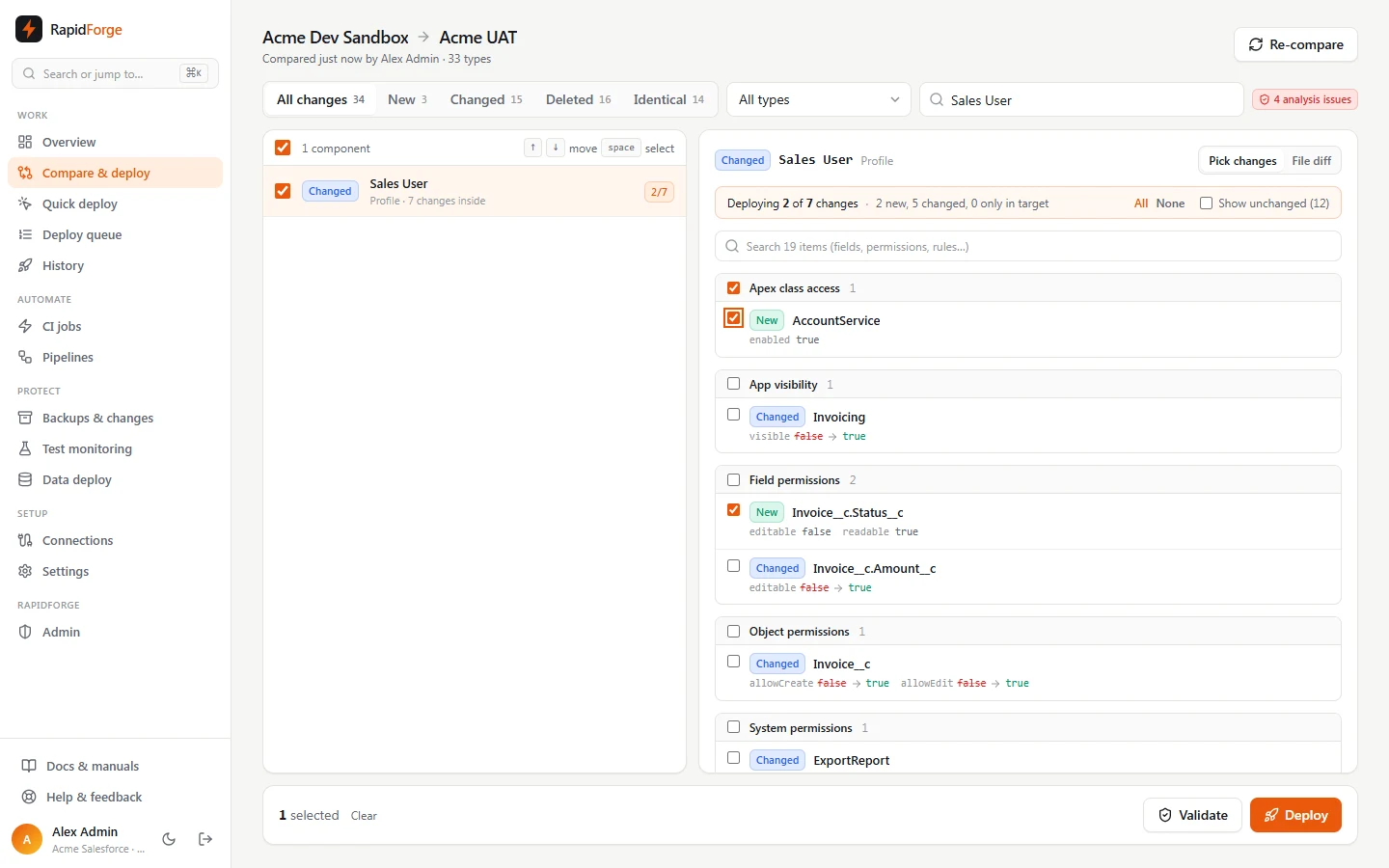
Picking 2 of 7 changes in the Sales User profile; the risky ExportReport permission is left out Validate or deploy as usual. The deploy panel lists Cherry-picked changes: Sales User (Profile): 2 of 7 changes.
In Quick deploy you can pick individual object fields directly from the list.
What actually gets deployed
Diffbridge takes the target's current file, applies only the items you picked from the source (adding new ones, replacing changed ones), and deploys that. Everything else in the target's file stays as it is, so un-picked differences remain differences. Re-compare and you'll see them still listed.
If you pick every change, the source file is deployed as-is.
Page layouts
Layouts can be cherry-picked by section, related list and action list. Picking a section deploys the source's version of that section into the target's layout; the target's other sections stay as they are and keep their order. A new section goes after the section it follows in the source. Sections that only exist in the target can be picked too: they're removed from the layout. Two sections with the same name (often Custom Links) are told apart as Custom Links #2.
Deleting fields
On objects, items that only exist in the target (fields, validation rules, list views, record types, buttons, field sets, compact layouts) can be ticked to delete them from the target. Diffbridge also removes a deleted field from the layouts, reports and list views that use it. See Smart fixes & dependencies.
Things to know
- Profile and permission-set entries that exist only in the target are listed but can't be picked. Salesforce leaves entries that are missing from a deployment untouched, so you can't remove a permission by omitting it. To revoke a permission, set it to
falsein the source and deploy that change. - Object items that exist only in the target can be picked for deletion (see above). Picking every change of an object still never deletes anything: deletions are always ticked one by one.
- Cherry-picks are recorded on the deployment: the Components tab shows 2 of 7 changes with the item names. Roll back restores the whole component to its pre-deployment version.