Security: provisioning, access & encryption
SCIM provisioning, IP allowlist, session limits, org-level access and workspace encryption keys.
Owners and admins manage workspace security in Settings → Security. Single sign-on is in Settings → Single sign-on (see Team, roles & notifications).
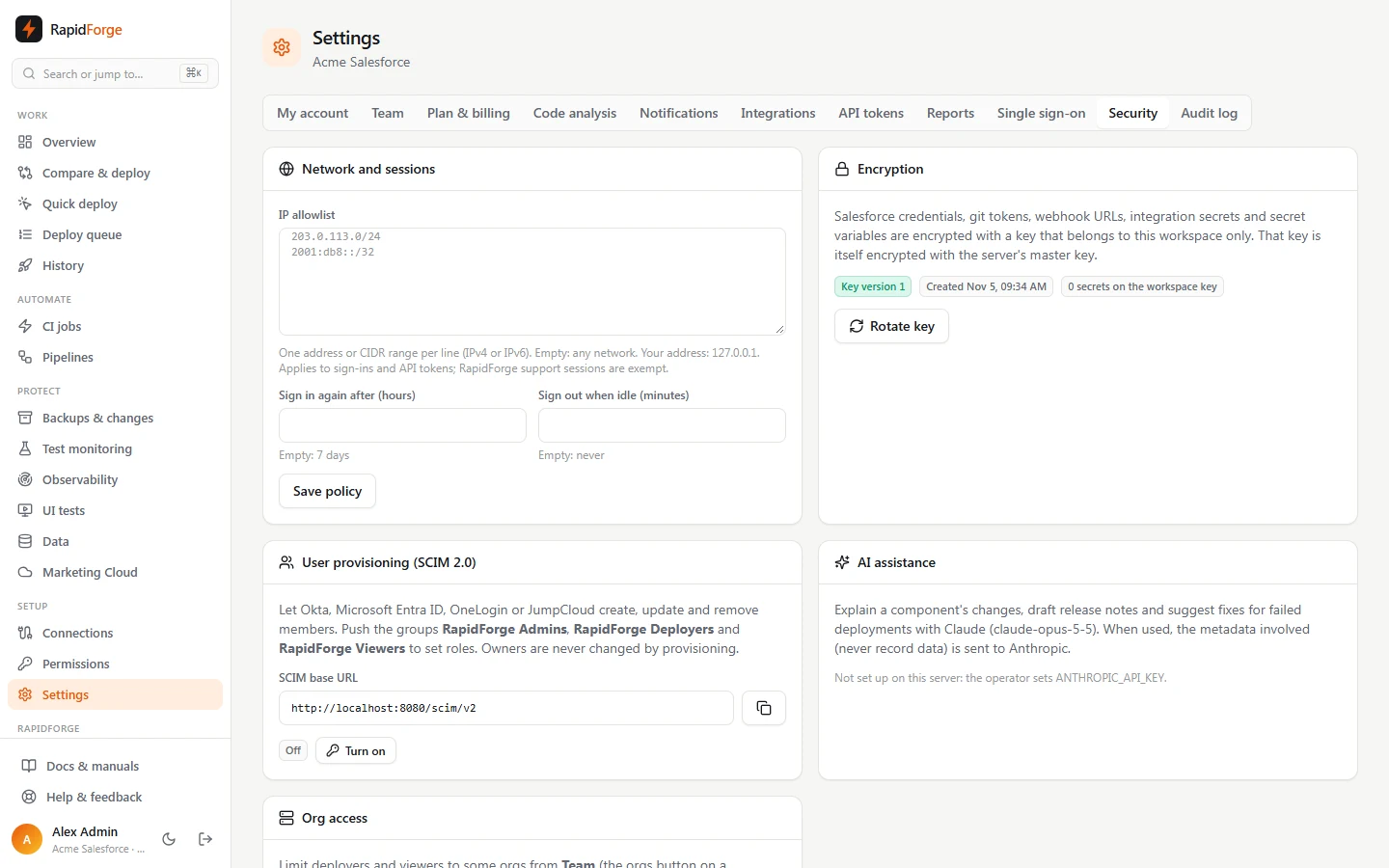
User provisioning (SCIM 2.0)
Let your identity provider create, update, deactivate and remove members: Okta, Microsoft Entra ID, OneLogin, JumpCloud and any other SCIM 2.0 client.
- In Settings → Security, click Turn on under User provisioning. Copy the bearer token (shown once) and the SCIM base URL.
- In your identity provider, add a SCIM app with that base URL and token. Map
userNameto the user's email. - Assign people. New members can sign in with single sign-on straight away.
Roles follow three fixed groups. Push Diffbridge Admins, Diffbridge Deployers and
Diffbridge Viewers from your identity provider; membership sets the role, and leaving a group
drops the member to viewer. Without groups, new members get the SSO just-in-time role (viewer if
none is set), or the roles attribute when your provider sends one.
Deactivating someone in your identity provider disables them in Diffbridge and revokes their API tokens. Removing them deletes the member. Owners are never changed by provisioning: change the owner in Diffbridge first. Every provisioning change is in the audit log as SCIM provisioning.
Provisioned members show a provisioned badge in Team. Turning provisioning off (or making a new token) stops the old token at once.
Verifying single sign-on domains
An email domain only routes people to your identity provider, and only gets accounts created on
first sign-in, once you prove you control it. In Settings → Single sign-on, copy the
rapidforge-verification=… value, add it as a TXT record at _rapidforge.<your domain> with your
DNS provider, and click Verify. A domain another workspace has verified can't be verified again.
Until then, members who already have an account can still sign in from your identity provider's app
launcher; only the Sign in with SSO lookup and automatic account creation wait for verification.
Network and sessions
- IP allowlist: one address or CIDR range per line, IPv4 or IPv6 (
203.0.113.0/24,2001:db8::/32). When the list isn't empty, sign-ins and API tokens only work from those networks. Diffbridge won't save a list that leaves out your own current address, so you can't lock yourself out. Webhooks, SCIM and inbound email aren't affected, and Diffbridge support sessions are exempt so support can still help. - Sign in again after (hours): a hard limit on how long a session lasts, whatever the activity.
- Sign out when idle (minutes): sessions end after this long without activity. Each request keeps the session alive.
Signing out ends that session for good, even if someone copied its cookie. Changing your password signs you out everywhere else. Invite links work once, for 14 days.
Only owners can change these.
Org access
Deployers and viewers can be limited to some orgs: in Team, click the Orgs value on a member and pick their orgs. They then only see those orgs, and can't compare, browse, seed or deploy anything else. Owners and admins always see every org.
Each org can also need a higher role to deploy into it: on Connections, set Deploys by to admins+ or owners for production. Validations count as deployments here. CI jobs, set up by admins, still deploy as configured.
Encryption
Secrets (Salesforce credentials, git tokens, webhook URLs, integration secrets, Marketing Cloud secrets and secret variables) are encrypted with AES-256-GCM using a key that belongs to your workspace only. That key is itself encrypted with the server's master key, so a leaked database backup reveals nothing, and deleting a workspace destroys its key.
Stored backups (metadata snapshots, record backups, archives and their files) are encrypted too, with a separate random key per workspace that is itself wrapped by the workspace key above. Each file is bound to its own storage location, so a copy moved elsewhere will not open. Deleting a workspace deletes that key, which makes its stored files permanently unreadable. Rotating the workspace key re-wraps this small key; the stored files are not rewritten.
Rotate key (owners) creates a new key, re-encrypts every secret with it and destroys the old one. Secrets written before workspace keys existed are moved onto the workspace key the first time you rotate. The panel shows the key version and how many secrets use it.
Who can see and restore record data
Record backups and archives hold customer data. In Data → Privacy, choose who can open records in backups and archives and who can restore them: everyone, deployers and above, admins and owners, or owners only.